
Benchmark your GPU for FREE
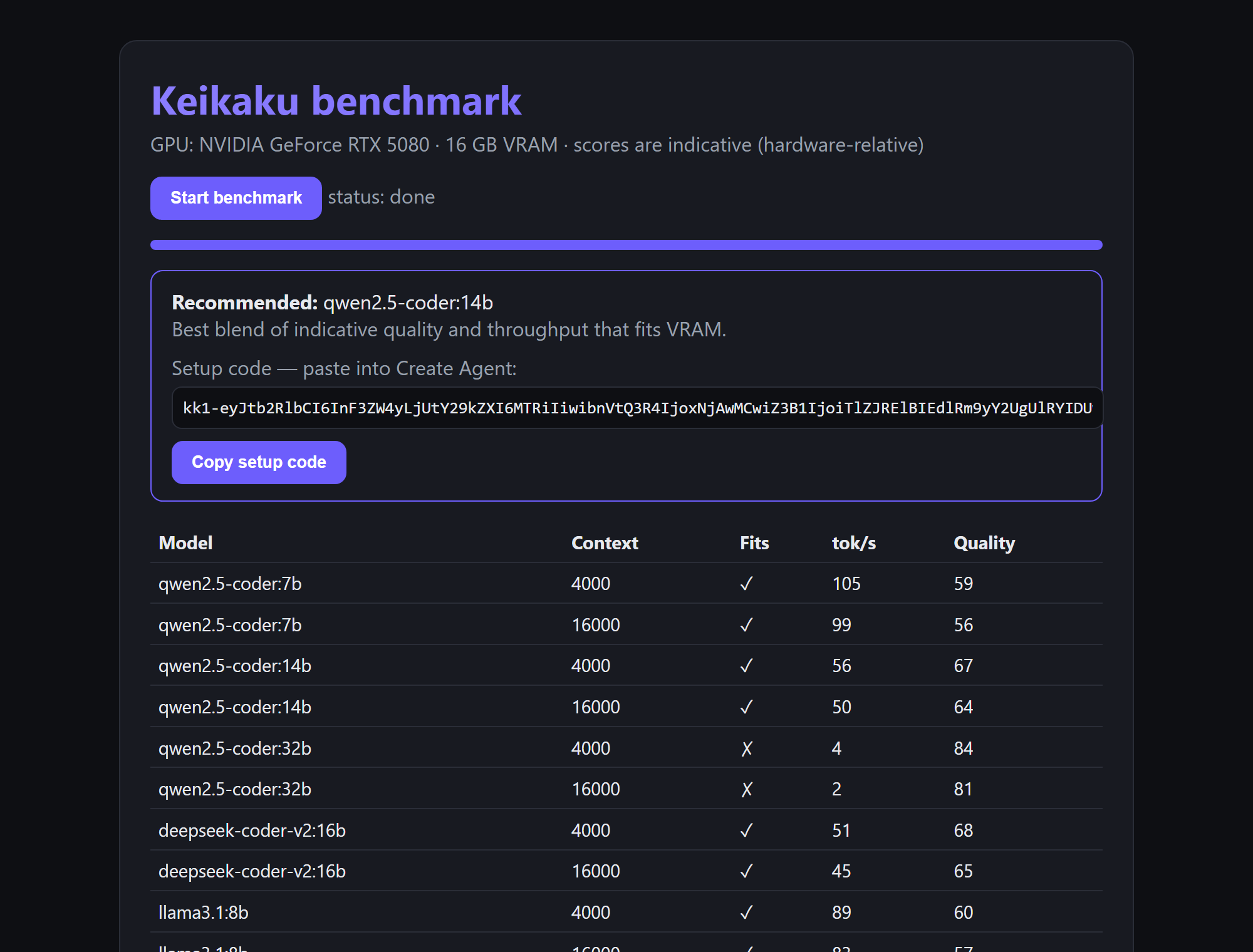
The benchmark is a small tool you run once on the same machine as Ollama. It measures real coding models against your hardware — speed, and whether each one fits fully in your GPU — then recommends one and gives you a setup code that fills in the model when you create your agent. It's completely free and you don't need a Keikaku account to run it.
Free, no sign-up. The benchmark runs entirely on your own machine — no Keikaku login, no cloud, no cost. Run it any time to see what your GPU can do; you only need an account later if you want to connect an agent.
How it works
It's a container that talks to your host Ollama over HTTP — the same way an agent does. For each model in the catalog it:
- Measures throughput — runs a fixed tiny coding prompt and records real tokens/sec and latency.
- Checks the fit — asks Ollama whether the model loaded entirely into VRAM. If any of it spilled to the CPU, that's flagged as a poor fit (it'll be slow).
- Smoke-tests the output — a light check that the model actually produced working code, for an indicative quality score.
It then recommends the best blend of quality and speed that fits your GPU, and emits a
kk1- setup code. When you run it with GPU access (below), your GPU's name and
VRAM are detected automatically — via nvidia-smi on NVIDIA — so you don't type
them in; on other hardware it falls back to a generic label, which doesn't affect the
measurements.
Prerequisites are the same as running an agent — Docker and Ollama installed, with a model or two available. If you haven't set those up, do the Windows or Linux guide first.
Setup and run
Run it in the foreground so you can watch it start, then open the URL it prints. It serves on
http://localhost:9190 and groups under the keikaku project in
Docker Desktop alongside your agents. Pick the command for your shell — the only difference
is the line-continuation character (` for PowerShell, \ for bash):
First, confirm Ollama is running — the benchmark talks to it over HTTP,
and "Ollama isn't running" is the most common reason a run fails. Open
http://localhost:11434
(it should say "Ollama is running"), or run ollama list in a
terminal. If nothing responds, start Ollama and try again.
Windows — PowerShell
docker run --rm --pull=always --name keikaku-benchmark -p 9190:9190 --gpus all `
  --label com.docker.compose.project=keikaku `
  -e OLLAMA_URL=http://host.docker.internal:11434 `
  ghcr.io/keikaku-ai/benchmark:latest
Linux — bash
docker run --rm --pull=always --name keikaku-benchmark -p 9190:9190 --gpus all \
  --label com.docker.compose.project=keikaku \
  --add-host=host.docker.internal:host-gateway \
  -e OLLAMA_URL=http://host.docker.internal:11434 \
  ghcr.io/keikaku-ai/benchmark:latest
Compose file
Prefer a Compose file? Save this as benchmark.compose.yml, then run
docker compose -f benchmark.compose.yml up (and
… down when you're finished):
name: keikaku
services:
  benchmark:
    image: ghcr.io/keikaku-ai/benchmark:latest
    pull_policy: always
    container_name: keikaku-benchmark
    environment:
      OLLAMA_URL: http://host.docker.internal:11434
      # BENCHMARK_PULL: '0'   # measure only already-installed models (skip multi-GB pulls)
    ports:
      - '9190:9190'
    extra_hosts:
      # Linux (Docker Engine) needs this to reach host Ollama; harmless on Docker Desktop.
      - 'host.docker.internal:host-gateway'
    gpus: all
Does the port matter? No — 9190 is just the local web UI,
reachable only from this machine; nothing is exposed to the internet. If something else
already uses 9190, change the left half of -p 9190:9190 (e.g.
-p 9191:9190) and open http://localhost:9191 instead. The right
half is fixed — it's the port inside the container. Note the benchmark uses
9190 while a running agent uses
9170 — different ports, so you can run both on the same machine at once.
About --gpus all: it only lets the tool read your GPU's
name and VRAM for the report — it's not how the benchmark runs models (that's
your host Ollama, over HTTP). So the flag is optional on any hardware: drop it and the
benchmark still runs and still tells you which models fit; it just won't label the exact
GPU. If you do keep it, the passthrough is vendor-specific — on Linux NVIDIA needs the
NVIDIA Container Toolkit
and AMD needs the ROCm device flags;
on Docker Desktop (WSL2) it works with your installed GPU driver.
Get your recommendation
- Open http://localhost:9190 and click Run.
- Watch the table fill in as it measures each model — tokens/sec, fits, and an indicative quality score.
- When it finishes you get a recommended model and a setup code starting with
kk1-. Copy it.
How long does it take? The measurement itself is quick: it runs one short coding prompt against each model in the catalog (five models today, at two context sizes), so once the models are already on disk a full sweep is only a few minutes. The slow part is the first run on a fresh machine — see below.
First run can download a lot. By default the benchmark pulls catalog
models you don't already have so it can measure them — each is several to tens of GB, so on
a fresh machine plan for the download time, not the compute (anywhere from minutes
to an hour on a slow connection). To measure only the models already installed in Ollama
and skip the downloads, add -e BENCHMARK_PULL=0 to the docker run
(or uncomment the line in the Compose file).
Use the setup code
In app.keikaku.ai → Agents → New agent,
paste the kk1- code into the Setup code field. It prefills the
recommended model, so the docker run command you get back already targets the
model that fits your GPU. Then follow the
self-hosted agent guide to run it.
The kk1- code isn't a secret — it just encodes the recommended model, context
size and your GPU label (you could type those values by hand). It carries no token or
credential, so it's safe to copy, paste or share.